New Paper for iOS 3.0 features I can't live without

Table of contents
The hashtag #CreateAnywhere takes on greater meaning now that Paper by FiftyThree is available for iPhone — a device I always have with me. Not only that, but with a new set of tricks up its sleeve, Paper is quickly becoming a productivity powerhouse.
Here’s some of my favorite additions found in the 3.0 update…
Universal Paper App
Yes, you’ve read correctly — Paper is now a universal iOS app that works on both iPad and iPhone. Every time I open Paper on my iPhone 5s I’m amazed that the features found on the iPad version all made the journey over.
Much like the complete UI overhaul in version 1.6.1, I got the sense that the team at FiftyThree re-evaluated every bit of the app for 3.0. Even if that meant modifying Paper’s defining characteristics1 to make the experience more intuitive and fluid.
Importing images
Love it or hate it (stick me in the love it camp), you can finally import images into Paper by FiftyThree! Tap the camera icon and you can either snap a picture or choose one from your photo library to place on the canvas.
You are limited to one photo per idea — but you can scale it, rotate it, and even call-out an area of interest with a new Spotlight option.
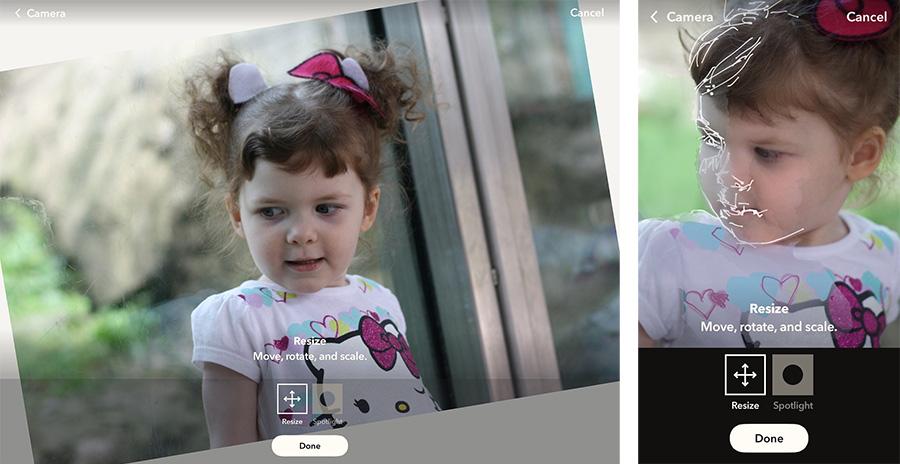
I’m excited to use this feature as a sketching aid — drawing directly on reference images I’ve imported into Paper. There’s no way to toggle this layer off yet (psst… FiftyThree engineers if you’re reading), but it’s easy enough to remove if you want to leave behind just what you’ve drawn or painted.

Tap and hold on the Eraser tool, tap Clear Photo, and poof!
Rotating ideas
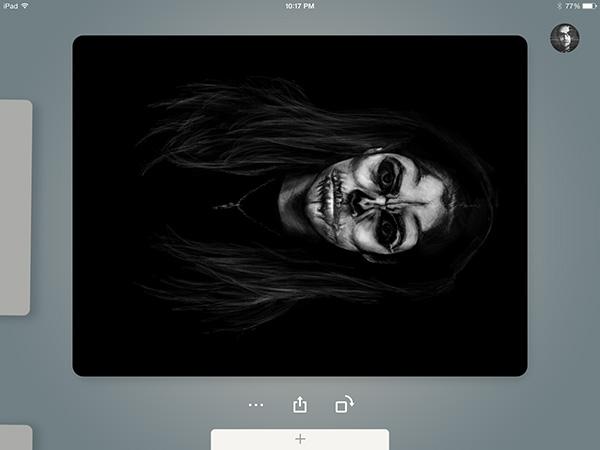
What a time saver this one is. If you wanted to share ideas “right side up” you had to export to the camera roll to make the rotation edit. This worked OK for sharing on social media but not so much with drawings shared on Mix.

In 3.0 there’s a new button conveniently located below each idea for rotating the canvas in 90 degree intervals. Horizontal and vertical ideas live in harmony together because of the new grid view. Which leads me to my next favorite thing in Paper 3.0…
View ideas horizontally or vertically with the tap of the new rotate button.
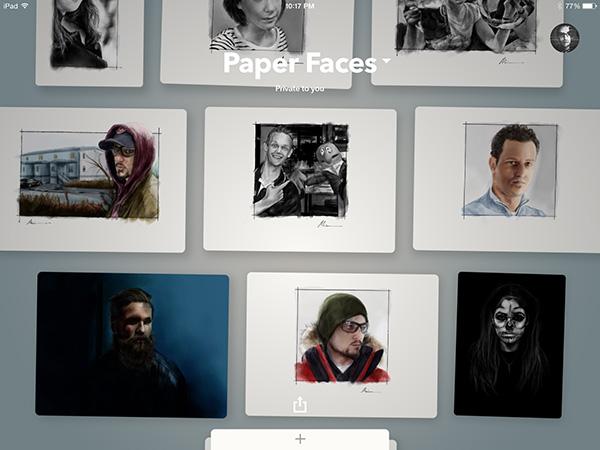
Journals replaced with “Spaces”
Paging through Paper’s digital journals might have been a good idea years ago, but with page counts in the hundreds it becomes unusable. Journals transitioning into “Spaces” is one of the best things to happen to Paper since the introduction of Think Kit.
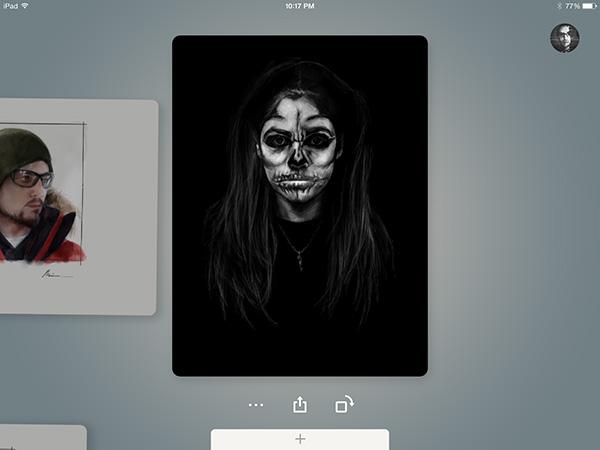
Instead of ideas bound together as books, they’re presented with a different UI metaphor — stacks of paper. These stacks expand into an aligned grid of cards you can interact with when tapped on.
I’ll tell you this much, scrolling through ideas in this way sure beats flipping back 500 plus pages to find a drawing I worked on a year ago.
These new “Spaces” are more accommodating of the new content types found in Paper 3.0 as well. Ideas in portrait or landscape orientation fit in perfectly with text notes and images.
There’s no way any of this would be usable or look half as good as it does now if FiftyThree stuck with the book/journal motif.
Other new additions
In my short time with the new iPad and iPhone versions I’ve come across a couple of other refinements that should make the app more pleasant to use. Feel free to add any you’ve discovered in the comment section below.
Popular gestures have dedicated buttons now
Undoing mistakes and page management are some of the most common Paper actions I get questions about. In my experience most people had no clue you could do either — so I’m happy to see they’re more discoverable now.
Undoing (Rewinding) can still be triggered with a gesture2 or by tapping the new << button found in the tool tray. Tap the button to step back an edit at a time or hold down to speed it up.
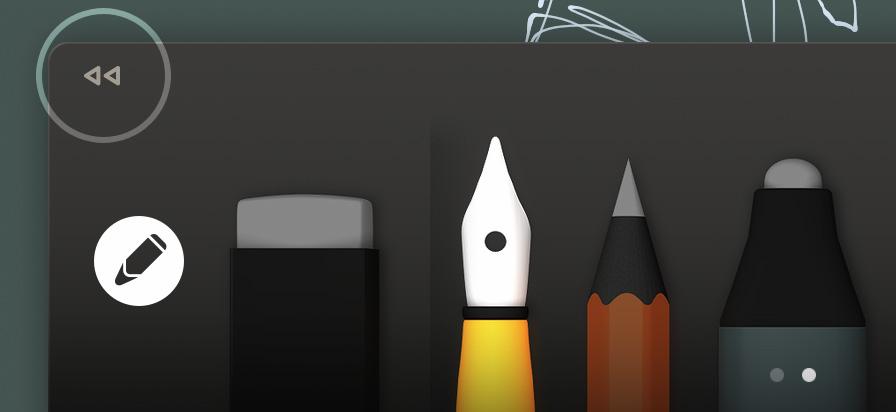
To quickly undo a mistake double tap the screen with two fingers.
The • • • button below each idea allows you to delete, duplicate, and move pages now. You no longer have to tap and hold an idea with one hand and do finger gymnastics with the other to move things around.

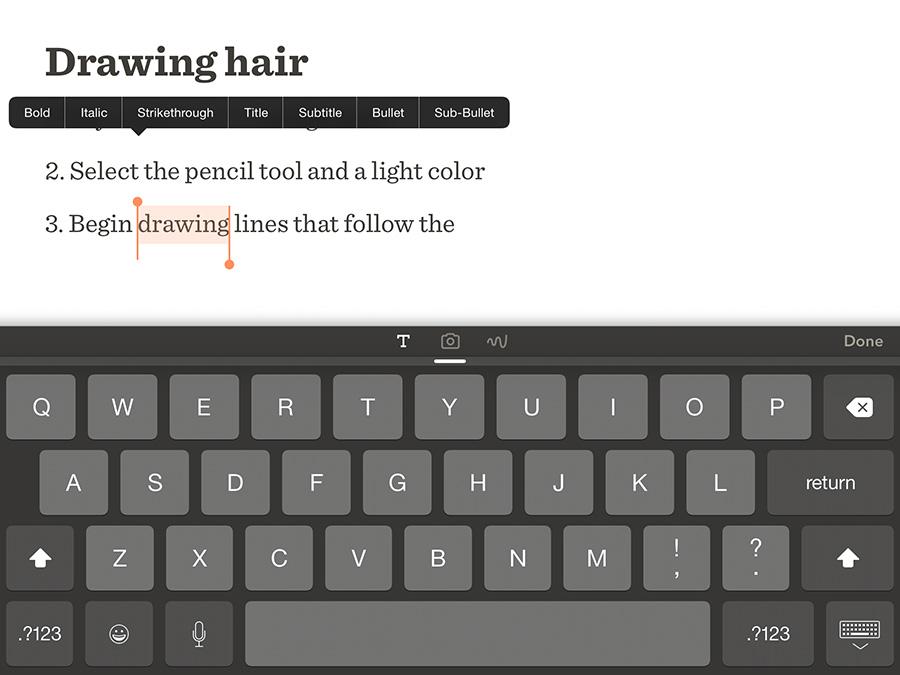
Ability to annotate ideas and create text notes
Perfect for to-do lists, recipes, or adding captions to your ideas and photos. I could see this coming in handy for providing context around an idea you’ve shared or to solicit feedback from followers.
Basic formatting of text can be achieved by swiping across text to cycle through styles (Title, Subtitle, Bullet, and Sub-Bullet). You can also bold, italicize, and strikethrough text by selecting it and tapping the right arrow followed by Style.
Changing the default idea type
You can switch between idea types (Canvas/Photo/Text) by tapping their corresponding icons in the tool tray. But you can also change which type is used as the default when creating a new idea.
Tap and hold on the new idea button (in this example it's a squiggle) at the bottom of the screen and select which type (Canvas, Photo, Text) you want to use as the default.
Formerly known As Mix
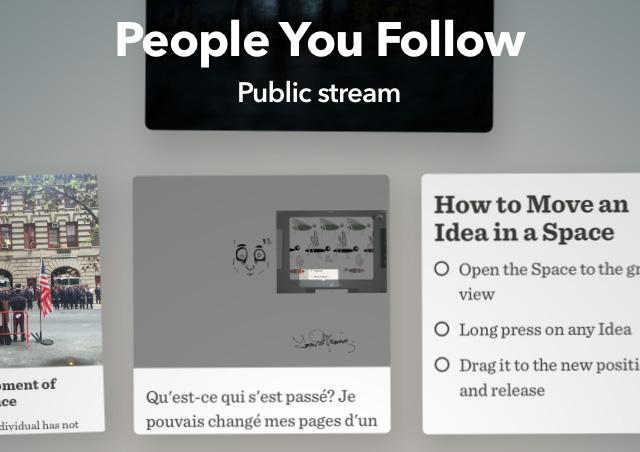
Mix is no longer something you “pull down” to access from within Paper. The stream of ideas from the People You Follow on Mix (or should I say PAPER now?) now appear alongside your private spaces for quicker access.
The shared journal has been removed from Paper but you can still see all of your public ideas in one place. Tap your avatar in the upper right, and then tap your name to bring up your profile card. From here tap Ideas to see everything you’ve shared.
OK, back to lusting over the new Apple Pencil and waiting for the day Apple brings that technology to the smaller and cheaper iPads.
-
Yes the journal book view and zoom loupe have gone away. Change is good, deal with it :sunglasses:.
↩ -
A small adjustment was made to the way Rewind works. To trigger it tap once with 2 fingers anywhere on the screen before making the circle gesture.
↩
4 comments